

SketchUp AI Render: 3 Ways to Get Realistic Images in 2026
Three ways to render a SketchUp model in October 2026: classic engines like V-Ray and Enscape, SketchUp's own AI Render, and AI plugins that keep your geometry. How to set up the view, what to write in the prompt, and when you still need a classic engine.

Written by Velocity Team
Architecture and design team at Velocity AOI
Published
Updated
Reading time
11 min
On this page10 sections · 11 min read
- Key takeaways
- What are the ways to render a SketchUp model in 2026?
- Which one should you choose?
- How do you prepare a SketchUp view for an AI render?
- What does "Follow my model" Loose, Balanced or Exact change?
- What should you write in a SketchUp AI render prompt?
- How do you render in SketchUp with the Velocity plugin?
- When do you still need V-Ray or Enscape?
- FAQ
- Ready to try it on your own model?
A SketchUp AI render turns a view of your SketchUp model into a photoreal image by painting materials, light and setting over the geometry you framed. As of October 2026 you have three routes: SketchUp's own AI Render, an AI render plugin that keeps your model's lines, or a classic engine such as V-Ray, Enscape, D5 or Twinmotion.
Which one fits depends less on the software and more on what the image is for. This guide covers the honest trade-offs, how to set up the view, and what to type.
Key takeaways
- AI renderers read a 2D view of your model. Classic engines compute light from the full 3D model, materials and lamps. Different jobs.
- SketchUp's built-in AI Render needs SketchUp 2024 or later on desktop, an active Go, Pro or Studio plan and an internet connection.
- Most bad AI renders start with a bad view: wide lens, no shadows, cluttered edges, no ground. Fix the scene first.
- Decide how closely the image must follow your model before you render. Concept images can drift; client-approval images should not.
- Keep V-Ray or Enscape for walkthroughs, daylight studies and sets of 30 views that must match exactly.
What are the ways to render a SketchUp model in 2026?
There are three: a classic render engine that works from the full 3D model, SketchUp's own generative AI Render, and third-party AI render plugins that render the view you framed. The table compares them as of October 2026, using each vendor's own documentation.
| Route | What it reads | What you must set up | Hardware notes (official pages only) | Best for |
|---|---|---|---|---|
| V-Ray for SketchUp | The full 3D model, materials, lights, camera | Materials, light sources, render settings | Windows list on SketchUp's V-Ray install page: Windows 10 or 11, a 64-bit CPU with AVX2, 8 GB RAM minimum (16 GB recommended), NVIDIA Maxwell or later for GPU rendering | Final hero images, accurate reflections, product-level detail |
| Enscape | The full 3D model in real time | Materials, assets, time of day | Enscape's system requirements: dedicated GPU with 4 GB VRAM and Vulkan 1.1 minimum, 8 GB VRAM recommended; SketchUp 2024, 2025 and 2026; on Mac, Apple silicon only | Live walkthroughs while you model, quick client reviews |
| D5 Render via LiveSync | Model, materials and viewpoints streamed from SketchUp | D5 Render installed as a separate app, materials, lighting | D5's SketchUp page says LiveSync needs D5 Render; check D5's published specs for your GPU | Real-time exteriors with heavy landscaping |
| Twinmotion | The model through Epic's Datasmith Exporter plugin | Exporter plugin, scene setup in Twinmotion | Epic's Datasmith guide for SketchUp Pro covers Windows and Mac | Animations, large site context |
| SketchUp AI Render | The current viewport plus a text prompt or preset style | Nothing beyond the view and prompt | SketchUp's getting-started page: desktop needs SketchUp 2024 or later; also on iPad and Web; needs an internet connection | Fast concept images inside SketchUp |
| AI render plugins (for example Velocity's) | The framed view or a chosen scene | The view, a look, how closely to follow the model | Image is generated online after sign-in; Velocity's plugin supports SketchUp 2018 and later on Windows and macOS | Client-ready exteriors and interiors from an unfinished model |
A note on names. Many people still search "SketchUp Diffusion". That was the name of SketchUp's earlier AI image feature in SketchUp Labs, with sliders for prompt influence and for respecting model geometry, which we covered in our guide to AI tools for architects by task. SketchUp's help centre now documents the built-in feature as AI Render, with controls for prompt strength, masking, a style reference image and an overlay of the result on your model.
Which one should you choose?
If you have no lights, half the materials and a meeting tomorrow, use an AI renderer. If the model is complete and you need the same building from 40 angles, or a walkthrough, use a classic engine.
Our view: most small studios are better off with both. AI for the first three rounds of options, when a client in Nagpur is still choosing between exposed brick and white plaster. A classic engine once the design is frozen and the brochure needs consistent views. Neither is "better". They answer different questions, and our pillar post on why AI rendering is becoming a daily tool for architects explains where the line falls.
How do you prepare a SketchUp view for an AI render?
Frame one clear eye-level view, switch shadows on, give the model a ground and sky, use a plain style with clean edges, and hide everything that is not building. AI reads every line on screen as something to build, so ten minutes on the scene saves an hour of re-rendering.
- Save a scene. Set the view, then add a scene (View > Animation > Add Scene) so you can come back to the exact camera after every design change.
- Use two-point perspective for exteriors. Camera > Two-Point Perspective keeps vertical lines vertical. A G+1 on a 30×40 plot with leaning walls looks like a phone photo taken from a car.
- Keep the field of view moderate. A very wide field of view stretches the corners and makes a 10-foot bedroom look like a hall. Stand back with a normal lens instead of widening the angle.
- Set the camera at a person's eye height. About 1.5 to 1.7 m above ground for exteriors. Drone views work too, but decide on purpose.
- Turn shadows on. Window > Shadows, with a sensible date and time for the site. Shadows tell the AI where the sun is and which faces step back. Some guides suggest hiding shadows for a cleaner input; our view is that shadows add depth cues worth more than the clutter they cost.
- Give it a ground and a sky. Turn on the ground and sky in the style background, or model a simple plinth and road edge. A building floating on white often comes back floating.
- Pick a plain style. Shaded faces with clear, thin edges. Avoid sketchy edges, heavy profiles, X-ray and watermarks.
- Paint where materials change. Rough colours are enough: grey for the plinth, a brick tone for the feature wall, dark grey for MS railings. The AI then knows where one material stops.
- Hide clutter. Guides, section planes, axes, dimension text, and tags for furniture you have not finalised.
- Choose the aspect before you render. 16:9 for screens and decks, 4:5 or 9:16 for Instagram, 1:1 for a WhatsApp preview. If you export by hand, use File > Export > 2D Graphic at a generous pixel width.
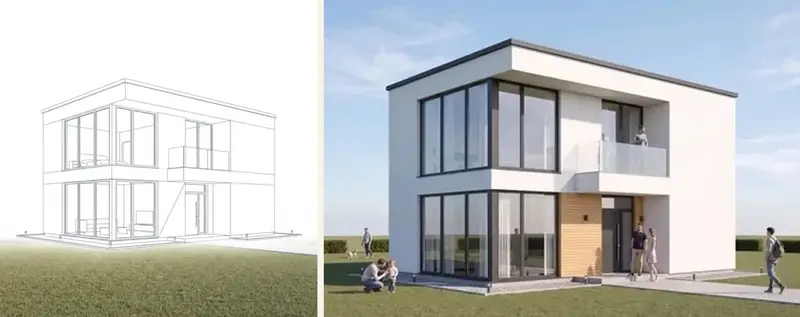
For hand sketches rather than models, the steps differ a little; our sketch to render AI workflow covers paper, scanning and line weight.
What does "Follow my model" Loose, Balanced or Exact change?
It sets how strictly the render sticks to the lines of your SketchUp view. Exact holds your geometry closest, Loose gives the AI room to add detail, and Balanced sits between them. We built the setting because every AI renderer makes this trade-off, and we would rather you choose it than have it hidden.
| Setting | What it is for | Use it when |
|---|---|---|
| Exact | Keep openings, floor heights, railings and proportions as modelled | Client approval, anything compared with drawings |
| Balanced | Follow the massing and openings while filling in believable detail | Most design-development renders |
| Loose | Treat the model as a starting point and suggest texture and detail | Early massing, mood images, when the model is still boxes |
The closer you are to a signed drawing, the closer you move to Exact. Then count windows, floors and railing bays against your model. If they do not match, the render does not go to the client.
What should you write in a SketchUp AI render prompt?
Name the materials, place, light and camera in one or two plain sentences. The model already gives the shape; the note only says what it is made of and when it is seen. "Ultra realistic, 8K, masterpiece" adds little.
Three notes we would write for Indian projects:
- Exterior, G+1 in Indore, west-facing: "Exposed red brick on the staircase tower, white plaster on the rest, dark grey MS railing, Kota stone on the porch floor, two areca palms by the gate. Late afternoon light, street-level view." This controls materials by part, planting, and sun direction.
- Interior, 3BHK living room in Pune: "Teak veneer TV wall, off-white walls, light grey vitrified tiles, linen curtains, warm cove lighting. Evening, lamps on." This sets finishes and a lighting mood without changing the room's layout.
- Terrace, Bengaluru rooftop: "Wooden deck tiles, cement planters with bougainvillea, pergola in black steel with a polycarbonate top, overcast monsoon sky." The weather words do as much work as the materials.
In Velocity's plugin, the "look" (Golden hour, Overcast, Night lit, Blue hour, Monsoon, Drone, or your own saved looks) sets the light, so the note can stay about materials.
How do you render in SketchUp with the Velocity plugin?
Install the .rbz file through Extensions > Extension Manager, sign in with a device code, frame your view, choose a mode and look, and render. The plugin works in SketchUp 2018 and later on Windows and macOS; you download it from the Velocity SketchUp plugin page.
- Install the .rbz from Extensions > Extension Manager and restart SketchUp.
- Sign in with the device code shown in the plugin. There is no API key to paste.
- Frame the view, or pick a saved scene.
- Choose the aspect: Viewport, 16:9, 4:3, 1:1 or 9:16.
- Choose the mode: Exterior, Interior or Elevation.
- Choose a look, set Follow my model, and add a short note if you want one. Fine-tune has 30 settings if the defaults are not enough.
- Render, then compare with the before/after slider.
- Save the image, try a Variation, or use "Add to model", which adds a scene with the render on a "Velocity renders" tag so the image lives with the file.
Quick render on the toolbar repeats your last settings, and History keeps the renders made from each model. From the result you can send the image to 4K Upscale, Night View or Edit & Swap on the web. If you would rather upload exported views than install anything, Exterior Rendering takes the same SketchUp view as an image and keeps its geometry.
When do you still need V-Ray or Enscape?
You still need a classic engine when the job depends on the full 3D model rather than one view. AI rendering paints a convincing picture of a view; it does not calculate light through your building.
Use V-Ray, Enscape, D5 or Twinmotion when you need:
- A walkthrough or real-time review where the client moves through the model.
- Thirty or forty views of a township that must show the same materials and the same sun.
- A daylight or glare question you have to answer with numbers, not impressions.
- VR, or interactive panoramas made straight from the model.
- Exact product appearance for a vendor, where a tile or a fabric must look like the real sample.
No render is a working drawing or a structural check. A beautiful cantilever still needs your structural engineer.
FAQ
Does SketchUp have AI rendering built in?
Yes. SketchUp AI Render is SketchUp's own generative feature. On desktop you install it from the Extension Warehouse, and SketchUp's help centre says it needs SketchUp 2024 or later, an active Go, Pro or Studio plan and an internet connection. It also runs on SketchUp for iPad and SketchUp for Web. It works from the viewport plus a text prompt or a preset style.
What is SketchUp Diffusion?
Diffusion was the name of SketchUp's earlier AI image feature in SketchUp Labs. It generated images from your model view and a prompt, with controls for how much the prompt and the model geometry shaped the result. SketchUp's help pages now describe the built-in feature as AI Render, so search for that name in the Extension Warehouse.
Is there a SketchUp AI render plugin that keeps my design?
Yes. Velocity's SketchUp plugin renders the view you framed or a saved scene, and its Follow my model setting lets you pick Loose, Balanced or Exact. Choose Exact for approval images. Whichever plugin you use, check the result against your model: count windows, floors and railing bays before you share it.
Can I render SketchUp with AI on a basic laptop?
Usually, yes. AI renderers such as SketchUp's AI Render and Velocity's plugin generate the image online, so they depend on a stable internet connection more than on a powerful graphics card. Classic engines are different: Enscape, for example, lists a dedicated GPU with at least 4 GB of VRAM as its minimum on Windows.
Do I need to apply materials before an AI render?
Not fully, but rough colours help. Paint each part where the material changes, such as the plinth, a brick wall, glass and railings, so the AI knows where one finish ends. Then name the real materials in your note, or the AI will choose them for you.
Ready to try it on your own model?
Take the SketchUp file you are presenting next, save one clean eye-level scene with shadows on, and render it at Exact before your meeting. You can download the plugin and the rest of the AI Suite from Velocity AOI, built in India for architects and interior designers who want the image to match the design.
Sources

Written by
Velocity Team
Architecture and design team at Velocity AOI
We write plain guides for Indian home-owners and the architects they hire. Every number links to its source, and images made with AI are labelled.